
11 July 2026
Best Practices for Creating a Business Email Address (2026)
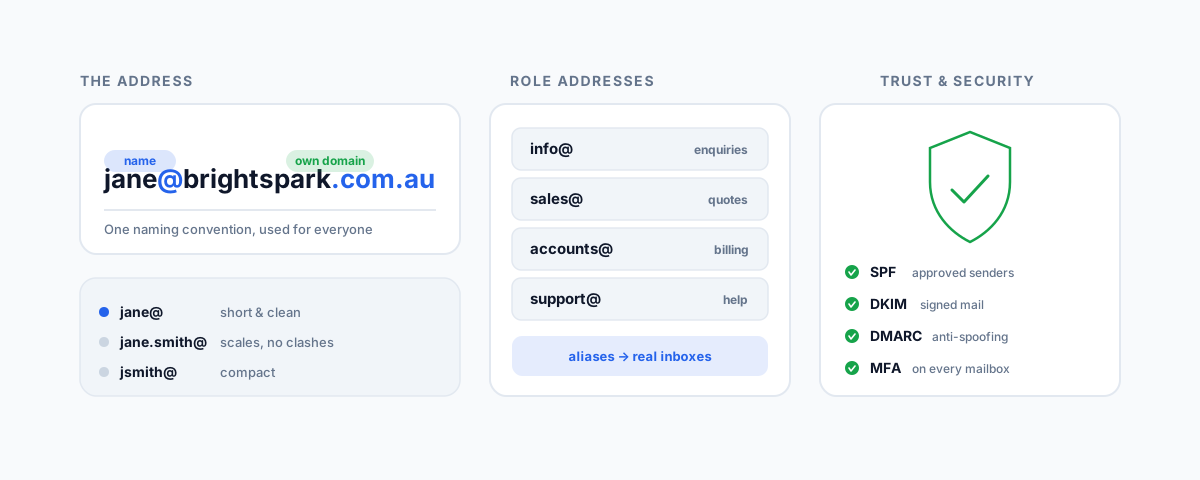
A practical, Australian-first guide to creating professional business email addresses — using your own domain, choosing a naming convention, role addresses versus personal, aliases, and the SPF, DKIM, DMARC and MFA setup that keeps your mail trusted and out of spam.
The email address on your business card does a job before you have said a word. A message from jane@brightsparkelectrical.com.au reads as a real business; the same person emailing from brightsparkelec@gmail.com reads as someone doing it on the side. That first impression is only the surface of it — a proper business email setup also gives you control, security, and a far better chance of your mail actually landing in the inbox rather than the spam folder. Getting it right is not hard, but there are a handful of decisions worth making deliberately at the start, because they are annoying to unpick later. Here is how to create business email addresses properly.
Use Your Own Domain
The single most important decision is to run email on your own domain — the part after the @ — rather than a free provider. yourbusiness.com.au instead of gmail.com. This is not vanity. A free address tells customers nothing except that you have not set up a real one, and it means your business identity lives on infrastructure you do not own. Register a domain, and every address on it is yours to create, change, and keep.
For Australian businesses, the choice between .com.au and .com is worth a moment. A .com.au signals an established local business — and, until recent years, required an ABN or ACN to hold, which is partly why it still reads as more legitimate to Australian customers. A plain .com is fine and often held alongside it. Many businesses register both and point one at the other, so no customer ends up at a dead address. Whatever you choose, the domain is the foundation everything else sits on, so keep the registration in the business's own account — not your web developer's — and do not let it lapse.
Pick a Naming Convention — and Stick to It
Once you have a domain, decide how you will name people's addresses, and apply it consistently. The common formats are firstname@ (jane@), firstname.lastname@ (jane.smith@), or first-initial-plus-surname (jsmith@). Each is fine; what matters is that you pick one and use it for everyone. Consistency is what makes addresses guessable, professional, and easy to administer as you hire.
A few practical rules make the difference between a setup that scales and one that gets messy:
- Keep it readable and professional. No nicknames, no birth years, no jane_the_sparky_23@. The address is a business tool, not a personal handle.
- Plan for collisions. firstname@ is clean and short, but two Janes will force an awkward exception. If you expect more than a few staff, firstname.lastname@ scales without surprises.
- Avoid full stops and hyphens where you can. They are valid but get misheard over the phone and mistyped. Simpler is easier to give out.
- Match it to a real person or purpose. Every personal address should belong to one human; shared functions get their own addresses, which is the next decision.
Role Addresses Versus Personal
Alongside personal addresses, most businesses need a set of role-based addresses — ones tied to a function rather than a person. These are the addresses you put on your website, invoices, and signage, and they keep working when staff change.
| Address | Use it for |
|---|---|
| info@ | General enquiries and your public-facing catch-all |
| sales@ | Quotes, new business, and enquiries you want tracked |
| accounts@ | Invoices, billing, and anything your bookkeeper needs to see |
| support@ | Customer help and service requests |
| admin@ | Internal and administrative correspondence |
The key trick is that these usually should not be separate paid mailboxes. On most providers you can set a role address up as a shared mailbox or an alias that delivers into one or more real inboxes — so info@ can land in the office manager's mailbox, or sales@ can go to the whole sales team, without paying for an extra licence. That keeps the public addresses stable and cheap while making sure someone actually sees what comes in. Put a real routing behind every role address you advertise; an info@ that no one reads is worse than not having one.
Aliases and Catch-All, Carefully
Aliases are one of the most useful and underused features in business email. An alias is an extra address that delivers into an existing mailbox at no extra cost — handy for giving one person a role address, running a campaign-specific address, or catching a common misspelling of someone's name. Use them freely.
A catch-all — configuring the domain so any address at all (typo@, random@) lands somewhere rather than bouncing — is more of a trap than it looks. It guarantees no legitimate mail is lost to a typo, but it also means every spammer guessing addresses at your domain reaches a real inbox, and the volume adds up fast. The safer pattern is to create the specific aliases you actually need and let genuinely wrong addresses bounce, which is normal and expected.
Lock It Down
A business email address is an identity, and an unprotected one is a liability — both because it can be broken into and because it can be impersonated. Two layers matter here, and most small businesses have neither fully set up.
The first is authentication of your outgoing mail, which is what keeps your messages trusted and stops others sending mail as you. Three DNS records do this work, and it is worth understanding what each is for even if you have someone set them up:
- SPF lists which mail servers are allowed to send email for your domain, so receivers can reject anything sent from somewhere that is not on the list.
- DKIM adds a cryptographic signature to your outgoing mail, letting the receiving server verify the message genuinely came from you and was not altered in transit.
- DMARC ties the two together — it tells receiving servers what to do with mail that fails those checks (ignore, quarantine, or reject) and reports back on attempts to spoof your domain.
Without these, your legitimate mail is more likely to land in spam, and scammers can send convincing invoices and requests that appear to come from your business — a common and costly scam. With them, deliverability improves and impersonation gets much harder. Any competent provider or IT support can configure all three.
The second layer is protecting the accounts themselves: multi-factor authentication (MFA) on every mailbox so a stolen password alone cannot get in, strong and unique passwords managed in a password manager rather than reused, and sensible admin controls on who can create or access addresses. Email is the master key to almost every other account — password resets all land there — so it deserves the strongest protection you have.
Plan for People Leaving
The last piece is what happens when someone leaves, because it is always handled badly when it is not planned. Do not simply delete the mailbox — that bounces every customer who emails them and loses history you may need. The better pattern is to convert the departed person's mailbox to a shared or forwarding address, redirect it to their manager or replacement for a handover period, reset the password, and remove their access. That way business does not fall through the cracks between one person leaving and the next picking up. We cover this and the rest of the joiner-and-leaver process in our IT onboarding and offboarding checklist for small business.
Getting Help
None of this is difficult on its own, but it adds up to a setup — domain, addresses, routing, authentication records, and account security — that is worth getting right once rather than fixing after something goes wrong. If you have not yet chosen where to host it all, our guide to the top business email providers in Australia compares the main options on price and fit. And if you would rather have the whole thing set up properly — domain email, the SPF, DKIM and DMARC records, MFA, and clean naming across your team — our Small Business IT Support service handles exactly this, so your email looks professional, stays secure, and reliably reaches the inbox.