
9 July 2026
How to Fix a QuickBooks Unrecoverable Error
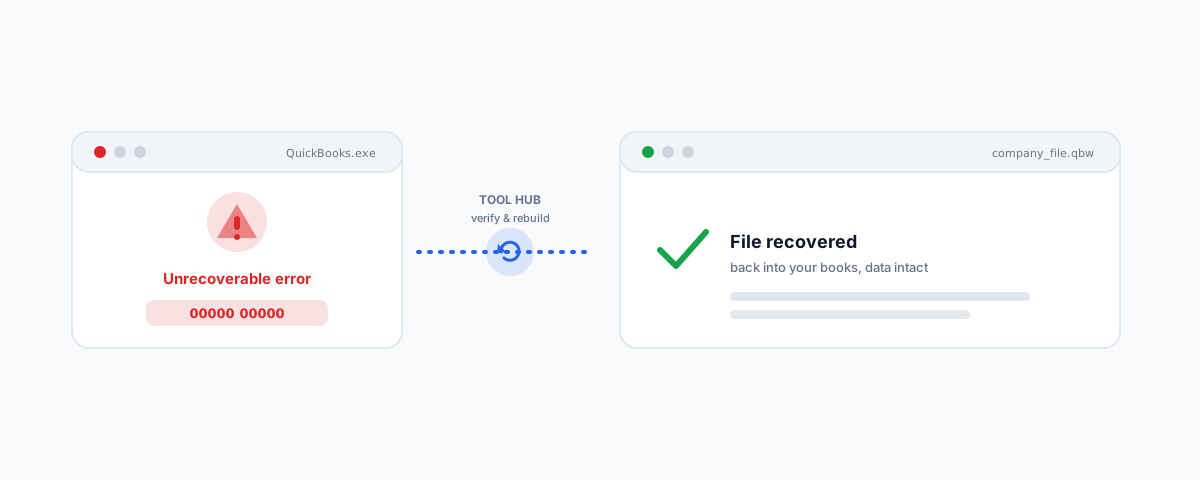
A step-by-step guide to fixing a QuickBooks Desktop unrecoverable error — recording the codes, using the QuickBooks Tool Hub, verifying and rebuilding your data, isolating a damaged company file, and when to restore a backup.
An "unrecoverable error" in QuickBooks Desktop is the program crashing with a scary message and a string of code numbers, usually when opening the company file, saving, or running a report. It sounds terminal, but it rarely is — most unrecoverable errors trace back to a damaged company file, a corrupt Windows user profile, or a program that needs repairing, and each has a known fix. Work through these in order. (Note: this is a QuickBooks Desktop issue; if you are on QuickBooks Online you will not see it — and in Australia, where QuickBooks is now Online-only, this mainly affects Desktop users on older or overseas installs.)
First: Record the Error Codes
The message includes a pair of code numbers (for example, 00000 00000). Write them down before you close it. Different code pairs point at different causes, and having them makes diagnosis — and any support call — far faster. Then restart your computer before anything else; a surprising number of one-off crashes clear with a clean restart.
Update QuickBooks and Run the Tool Hub
Two of Intuit's own tools fix the majority of cases:
- Update QuickBooks Desktop to the latest release — many unrecoverable errors are already patched in newer versions.
- Install the QuickBooks Tool Hub, Intuit's free repair utility, and run Quick Fix my Program and the Program Problems tools. These close background QuickBooks processes and repair a damaged installation without you touching anything technical.
If the crash happens for every company file and every user, the problem is usually the program itself — the Tool Hub's program repair is the right fix.
Isolate the Cause: File, Program, or Profile
If updating and repairing did not help, narrow down where the damage is:
- Open a sample company file (from the No Company Open window). If the sample opens fine but yours does not, the problem is your company file, not QuickBooks.
- Open your file from a different computer or a copy — if it fails everywhere, the file is damaged; if only one machine fails, that installation or profile is the issue.
- Create a new Windows admin user and open QuickBooks there. If it works, your original Windows user profile was corrupt.
Repair a Damaged Company File
When the company file is the culprit, QuickBooks can often fix it itself. Run Verify Data (File → Utilities → Verify Data) to detect damage, then Rebuild Data to repair it — always let it take the backup it offers first. For stubborn corruption, the Tool Hub's Company File Issues tab runs the QuickBooks File Doctor, which repairs many file and network problems automatically.
When to Restore a Backup
If verify/rebuild cannot save the file, the cleanest path is to restore your most recent backup and re-enter the small amount of work since. This is exactly why a disciplined backup routine matters — the difference between a ten-minute recovery and losing your books. The same lesson applies to cloud accounting, which we cover in backing up QuickBooks Online automatically.
Getting Help
Unrecoverable errors are usually fixable, but data-level corruption is not something to guess your way through — a wrong move can make a recoverable file worse. If you are stuck, or the file matters too much to risk, our Small Business IT Support service can diagnose the error codes, run the repairs safely, and get you back into your books with your data intact.