
2 July 2026
How to Back Up QuickBooks Online Data Automatically
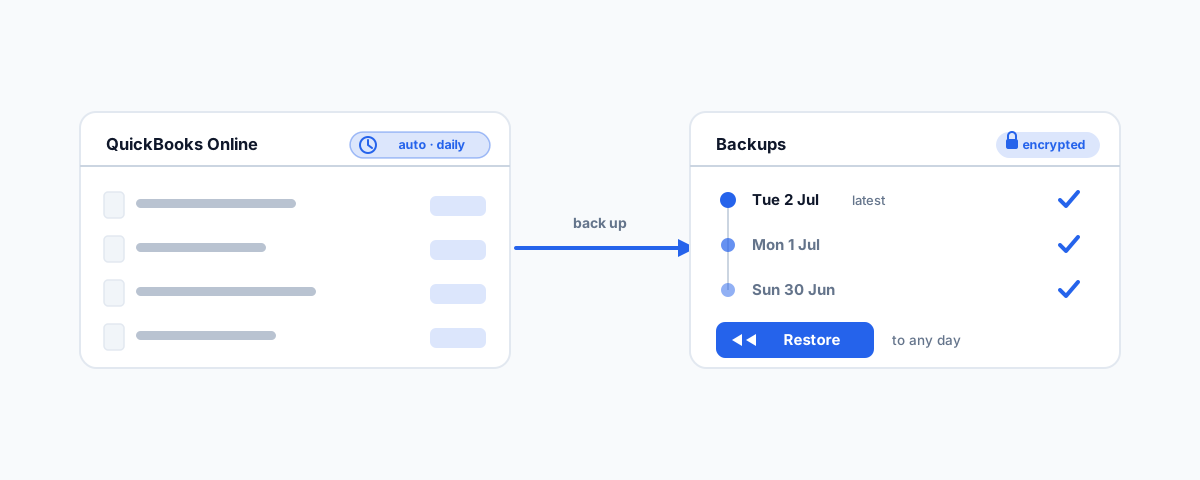
Why QuickBooks Online is not backed up the way most owners assume, what can go wrong, the ATO record-keeping angle, and how to back up your QBO data automatically — native on Advanced, or a third-party app on any plan.
QuickBooks Online holds the financial heart of a small business — every invoice, bill, payment, and reconciliation that your BAS and tax return are built from. So it is reasonable to assume that because it lives in the cloud with Intuit, it is safe. That assumption is where a lot of businesses come unstuck. QuickBooks Online is highly reliable, but "reliable" and "backed up in a way you can recover from" are not the same thing. This is a plain-English look at why your QBO data may not be as protected as you think, why it matters more in Australia than you might expect, and how to fix it with automated backup.
The Shared-Responsibility Gap
Like every major cloud platform, QuickBooks Online runs on a shared-responsibility model, and it is worth understanding exactly where the line sits. Intuit is responsible for keeping the service running: the infrastructure, the security of the platform, and disaster recovery if their own systems fail. What Intuit is not responsible for is protecting your data from you — from an accidental deletion, a bad import, or a change someone made that should never have happened. On most QuickBooks Online plans, there is no button Intuit support can press to roll your company back to how it looked last Tuesday. That part is on you.
This surprises people because it feels like it should be Intuit's job, but it is the same model that governs Microsoft 365 and Google Workspace, and it exists for the same reason: the provider cannot tell the difference between a mistake and a deliberate action. If you delete something, as far as the system is concerned, you meant to.
What Actually Goes Wrong
The risk is not hypothetical, and it is rarely a dramatic hack. The everyday causes of QuickBooks data loss are mundane. Someone deletes a batch of transactions to "clean things up" and takes months of history with them. A CSV import goes wrong and overwrites or duplicates records across the ledger. A connected third-party app with write access misbehaves and quietly changes data you did not ask it to touch. A bookkeeper leaves on bad terms. Ransomware hits a connected system. Any one of these can leave your books wrong or missing, and without a backup, there is often no clean way back — you are reconstructing from bank statements and memory.
The through-line is that these are self-inflicted or third-party problems, not Intuit outages — which is exactly the category Intuit's own safeguards are not designed to reverse for you.
Why This Is a Compliance Issue in Australia
For an Australian business, losing accounting data is not only a headache — it can be a breach of your legal obligations. The ATO requires you to keep most business records for around five years, covering income tax, GST, and BAS, and to be able to produce them if asked. Your QuickBooks Online company file is where many of those records live. If a chunk of it is deleted or corrupted and you have no way to restore it, you have not just lost data — you may have lost records you are legally required to hold. The ATO sets out these record-keeping requirements clearly, and "the software was in the cloud" is not a defence. That alone moves automated backup from a nice-to-have to something closer to a compliance control.
What Intuit Actually Gives You (and the Catch)
QuickBooks Online does have a native backup feature — but there is a significant catch: it is only available on QuickBooks Online Advanced, the top tier. If you are on Simple Start, Essentials, or Plus, you do not have it at all. On Advanced, the feature lives under the gear menu (Intuit moved where it sits in early 2026, so it may not be where you last saw it), and once you switch it on it backs up your company automatically every 24 hours and keeps roughly a year of snapshots, letting you restore your whole company to a point in time. Intuit documents the setup in its guide to backing up and restoring a QuickBooks Online Advanced company.
Two things to note even if you are on Advanced. First, it does not turn itself on — you have to enable it, and plenty of businesses assume it is already running when it is not. Second, it only reaches back a year, so it is protection against recent mistakes, not a permanent archive.
Export Is Not Backup
A common response is "we export to Excel every so often, so we're covered." Unfortunately, an export is not a backup. Exporting reports, lists, or a CSV gives you a static copy of some information for your records, but you cannot import it back to rebuild a broken company file — the relationships between transactions, accounts, and reconciliations do not survive the round trip. Exports are useful for reporting and handover; they are not a restore path. If your recovery plan is a folder of spreadsheets, you have documentation, not a way back.
The Automated Fix for Every Plan
If native backup is Advanced-only and exports do not count, what do the other 90% of businesses do? They use a dedicated third-party backup app, and this is the route worth taking regardless of your plan. Tools such as Rewind — which is listed on the Intuit App Store — along with Skyvia, Druva, and SysCloud, connect to your QuickBooks Online account and run automatic daily backups of the things that matter: transactions, lists, attachments, and more, with the ability to restore individual items or your whole account on demand. They work on any QBO plan, and they typically cost a fraction of upgrading to Advanced just for the backup feature.
One caveat worth taking seriously: a backup app needs read and write access to your QuickBooks data, which means a poorly chosen or misconfigured one could itself change or delete data. That is not a reason to avoid them — it is a reason to choose a reputable, well-reviewed provider, connect it properly, and keep an eye on who has access. The same principle applies across all your cloud tools, which we cover in our guide to the best automated cloud backup for small business.
What Good QuickBooks Backup Looks Like
Whichever route fits your plan, aim for the same outcomes. The backup should be automated and run at least daily, so it never depends on someone remembering. It should let you restore granularly and to a point in time, so you can undo a specific mistake without reversing good work done since. It should capture attachments, not just transactions, because those source documents are part of your records. Access should follow least privilege, so only the right people and apps can touch it. And — the step almost everyone skips — you should test a restore at least once, so you know it works before the day you are counting on it.
Getting Help
Backing up QuickBooks Online is not hard, but it is easy to leave undone, misconfigure, or assume is already handled when it is not — and the cost of getting it wrong lands at the worst possible time, often at tax time. If you would rather have it set up properly, running automatically, and restore-tested so your books are genuinely protected, our Small Business IT Support service handles backups end to end, including the cloud accounting data your business is built on. Get it owned once, and your QuickBooks data stops being a single point of failure.