
30 July 2026
Brick & Mortar and Online: How to Manage Retail Inventory on Shopify
A practical guide for physical shops selling on Shopify POS and the online store — how Shopify's location model actually works, setting up shopfront vs stockroom locations, low stock alerts, and running a stocktake without closing the till.
If you run a physical shop and also sell through a Shopify online store, you do not have two inventories — you have one. The jacket hanging on the rail and the same jacket listed on your website are the same stock record. A sale at the counter and a sale on the website are both trying to take from the same number, and if that number is wrong, one of them loses: a customer buys online something you already sold in person an hour ago, or a staff member tells someone in-store "we're out" of something forty units of which are sitting in the online warehouse. Neither is a technical failure so much as a setup failure — Shopify is built to handle exactly this, but only if you configure it the way a business with a physical shop actually needs.
One Stock Pool, Not Two
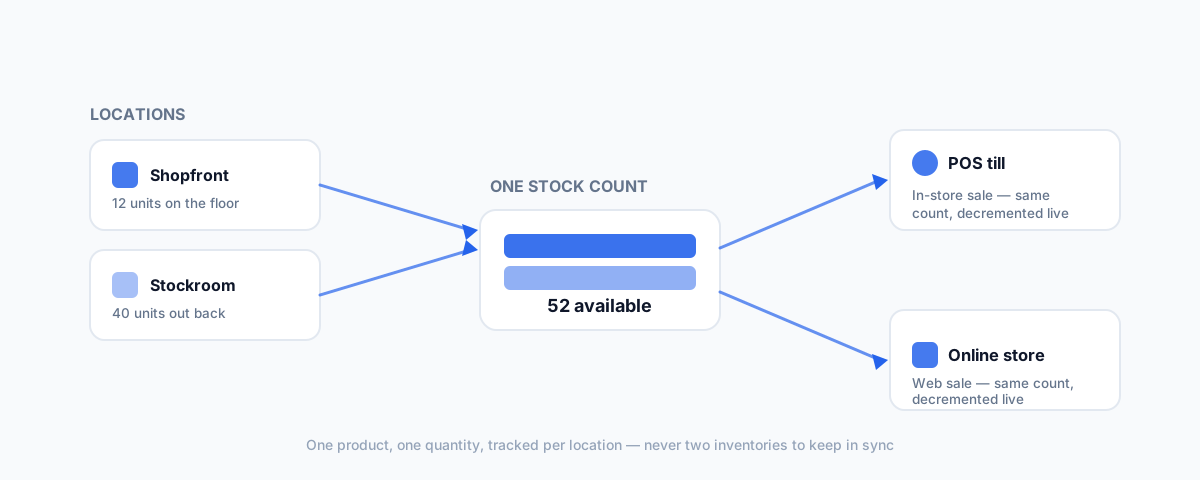
Shopify's core model already assumes this. A product's inventory is not "online stock" and "POS stock" as separate numbers — it is one quantity per product variant, tracked across whatever locations you set up. Shopify POS and your online store both read and write to that same quantity in real time, so a sale at the till decrements the same count a website order does. There is no export, no nightly sync, no second system to keep aligned — provided you have set up locations correctly, which is where most shops actually go wrong.
How Shopify's Location Model Actually Works
Every unit of stock in Shopify belongs to a location, and a location is just a place stock physically sits — your shopfront, a stockroom out the back, a warehouse, or a supplier who drop-ships for you. Shopify lets you:
- Track inventory separately per location — the shopfront can show 12 units while the stockroom shows 40, and Shopify adds them for the product's total available stock.
- Assign specific locations to specific sales channels — your online store can be told to fulfil from the stockroom while POS sells from the shopfront, or both can draw from a single combined location if that better matches how you actually operate.
- Move stock between locations with a transfer — when you bring boxes from the stockroom out to the shop floor, recording that as a transfer keeps both locations' numbers honest instead of just the total.
The mistake that causes most of the "we sold it twice" moments is treating the shop and the stockroom as one undifferentiated pile in Shopify when they are not one undifferentiated pile in real life. If ten units physically live in a locked stockroom and cannot be handed to a walk-in customer in the next five minutes, POS and your website should both know that distinction — otherwise you promise availability you cannot actually deliver at speed.
Setting Up Locations Correctly
A location setup that matches your actual shop looks like this:
- Create a location for each physical place stock sits — at minimum, your shopfront. Add a separate stockroom or warehouse location if stock is meaningfully separated from what is on the floor.
- Assign your POS device to the correct location — under Settings → Locations in Shopify admin, each POS device is tied to a specific location, and that is the location it sells from and decrements stock against.
- Decide which locations fulfil online orders — under a product's inventory settings, choose which locations are enabled for the online store's fulfilment. If the stockroom is not enabled, an online order will not be routed there, and vice versa.
- Set opening stock counts location by location, not as one combined guess — this is the step most shops skip when migrating onto Shopify, and it is the reason the numbers look wrong from day one.
Get this right once and the day-to-day becomes automatic: sell at the till, the shopfront location drops by one; sell online from stockroom-fulfilled stock, the stockroom drops by one; the product's total available stock is always the accurate sum of both.
Low Stock Alerts and Reorder Points
Once locations are set up, the next job is knowing when to reorder before you are actually out. Shopify's built-in low stock notifications can alert you by product and location once quantity drops below a threshold you set — useful, but basic. For a shop that wants proper reorder points, purchase orders, and supplier tracking, Shopify's own Stocky app (included free with a POS Pro subscription) adds demand forecasting based on your actual sales history, suggested reorder quantities, and purchase order management, all inside the same Shopify data — no separate inventory system to keep in sync. Most single-location shops do fine starting with basic low stock alerts and only move to Stocky once reordering by feel starts costing them stockouts.
Doing a Stocktake Without Closing the Shop
A physical stocktake is where paper counts and Shopify's numbers get reconciled — and it is also the moment errors from months of untracked adjustments (breakage, theft, staff giving out samples, a return processed by hand instead of through the system) finally surface. You do not need to close the shop to do one properly:
- Cycle count instead of a full count — count a rotating subset of your catalogue (a category or a shelf) each week rather than everything at once. Discrepancies get caught continuously instead of once a year, and no single count takes the whole floor out of action.
- Count during a quiet window, even for a cycle count, so a sale mid-count does not throw off what you just tallied.
- Adjust in Shopify against the location you counted, not the combined total — an inventory adjustment made against the wrong location just moves the error rather than fixing it.
- Investigate before you adjust if a discrepancy is large — a location mis-set on a POS device or a transfer that was never recorded is a more likely explanation than shrinkage, and adjusting straight to "correct" the number hides a setup problem that will recur.
A stocktake is not just an operational chore, either — the value of trading stock on hand at year end affects your assessable income, and the Australian Taxation Office sets specific rules for how you value it. It is worth reading the ATO's guidance on trading stock before your accountant asks for a stocktake figure at EOFY, so the count you hand over is one you can actually stand behind.
Click & Collect and Reserve-In-Store
If you offer click & collect or let customers reserve online for in-store pickup, that order sits in a slightly different state: it is sold, but the unit has not physically left the shopfront location yet. Shopify handles this correctly by default — a click & collect order still decrements the shopfront's available stock the moment it is placed, so a walk-in customer cannot buy the same unit five minutes later and create a genuine two-customers-one-item problem. The failure mode to watch for is staff manually holding an item "under the counter" for a reserved customer without that reservation existing in Shopify — that stock still shows as available to sell, and it will get sold to someone else.
When You Outgrow the Basics
The setup above covers the large majority of shops running Shopify POS alongside an online store. Two situations call for more:
- If checkout is getting slow because staff are manually looking up products, our guide to a Shopify POS barcode system covers the free, native way to add barcode scanning without introducing a second system to keep in sync.
- If you also sell on Amazon, eBay, or Etsy alongside your shop and website, the location discipline above is necessary but not sufficient — you will also need to keep those external marketplaces synced to the same stock pool, which our guide to Shopify multichannel inventory sync walks through.
Getting Help
Most inventory problems that look like "Shopify is buggy" are actually a location model that does not match how the shop physically operates — a POS device tied to the wrong location, a product not enabled for online fulfilment from the stockroom, or opening counts that were never split correctly. If you would like it set up properly the first time, or diagnosed and fixed if it is already causing oversells, our Shopify Integrations service covers location setup, POS configuration, and the inventory workflows that keep in-store and online counts trustworthy.