
4 July 2026
How to Migrate from WooCommerce to Shopify Without Losing SEO
A practical guide to moving a WooCommerce store to Shopify while protecting your search rankings — mapping every URL, setting up 301 redirects, migrating products and content, preserving metadata, and verifying it all in Google Search Console.
Moving a store from WooCommerce to Shopify is mostly a data exercise — until you remember that every page on your site is about to get a new address. That is the part that quietly destroys businesses' search traffic. Google has spent years learning your URLs and handing them rankings; change them all at once without telling Google where everything went, and those ranked pages become dead ends. The migration itself is the easy bit. Keeping the SEO you have already paid for is the real job, and it is entirely doable if you plan for it. Here is how to move platforms without watching your traffic fall off a cliff.
Why SEO Breaks When You Change Platforms
The damage almost always comes from the same few places. URLs change — WooCommerce and Shopify structure their addresses differently, so a product that lived at one path now lives at another. Redirects go missing — if the old URL is not pointed at the new one, anyone who clicks a Google result or an old link hits a 404, and Google eventually drops the page. Metadata gets dropped — carefully written title tags and meta descriptions do not carry across on their own. Internal links rot — links inside your own content still point at the old paths. A short ranking dip during any migration is normal while Google re-crawls; a permanent loss is a preventable mistake, and it is prevented mostly by redirects.
Map Every URL First
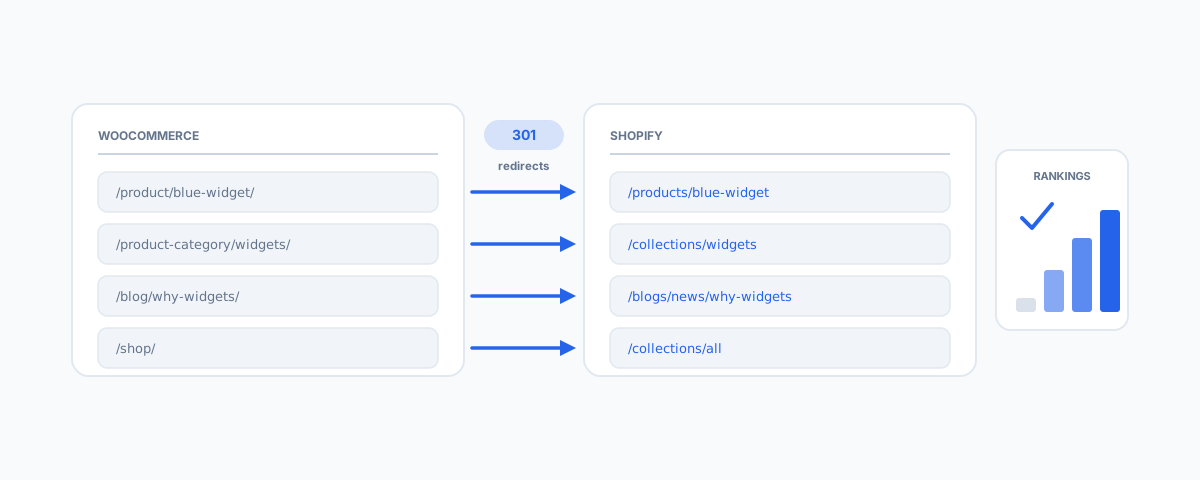
Before you touch anything, build a complete inventory of your current URLs and where each one will live on Shopify. This map is the single most important artefact of the whole migration. The catch is that Shopify uses fixed URL prefixes you cannot remove:
- WooCommerce products often sit at
/product/<name>/; on Shopify they become/products/<name>. - WooCommerce categories at
/product-category/<name>/become Shopify collections at/collections/<name>. - Your shop page, blog posts, and standalone pages all shift too — WooCommerce blog posts frequently live at
/blog/<name>/or a dated path, while Shopify uses/blogs/<blog>/<name>.
Because those /products/ and /collections/ prefixes are baked into Shopify and cannot be changed, a one-to-one match on the old path is usually impossible — which is exactly why redirects are non-negotiable. Export your full URL list from WooCommerce (a crawl with a tool like Screaming Frog, or your existing sitemap, works well) and put the new Shopify URL beside every single one.
Set Up 301 Redirects
A 301 redirect is a permanent "this moved here" instruction that passes the old page's ranking authority to the new one. Get these right and Google transfers your rankings across; get them wrong and you start from zero. The essentials:
- Redirect one-to-one. Each old URL points to its true new equivalent — the product to the product, the category to the collection. Do not take the lazy path of redirecting everything to the homepage; Google treats that as a soft 404 and you lose the ranking entirely.
- Use Shopify's tools. Shopify has a built-in URL Redirects feature (Online Store → Navigation → URL Redirects), and you can bulk-import the whole redirect map as a CSV rather than typing them one by one. For anything complex, a redirect app can handle patterns at scale.
- Cover the money pages first. Prioritise the URLs that actually earn — your top products, best-ranking categories, and highest-traffic blog posts — then work down the long tail.
- Test before and after launch. Spot-check that old URLs return a 301 (not a 404 or a 302) and land on the right page.
Migrate Products, Collections, and Content
With the map in hand, move the actual data: products, variants, images, and descriptions into Shopify's structure, and categories into collections. Migration apps and CSV imports handle the bulk, but this is also the moment things get messy — mismatched variants, broken image links, and inconsistent fields. It is worth cleaning the data as you go rather than carrying old clutter across; our guide to automating Shopify product data cleanup covers doing that at scale. If your store also sells across marketplaces, plan how stock will stay accurate afterwards — see multichannel inventory sync.
Preserve On-Page SEO Signals
Rankings are not just about URLs — the on-page signals have to come across too. Carry over each page's title tag and meta description rather than letting Shopify auto-generate generic ones. Keep image alt text, which drives image search and accessibility. Re-add any structured data (product schema for price, availability, and reviews) that your WooCommerce theme or plugins produced, since Shopify themes handle this differently. And check canonical tags are pointing at the right pages so you are not splitting authority across duplicate URLs. These details are cheap to preserve during the move and expensive to reconstruct later.
Don't Forget the Blog and Internal Links
Content is often where a store's rankings actually live, yet it is the first thing forgotten in a rush to move the catalogue. Migrate your blog posts and informational pages, not just products — and redirect their old URLs too. Then update internal links: links inside your own content and navigation that still point at old WooCommerce paths should be repointed to the new Shopify URLs, so you are not relying on redirects for your own site's navigation. Breadcrumbs and menu links count here as well.
Launch and Verify
Going live is the start of the SEO work, not the end. Publish Shopify's sitemap (generated automatically at /sitemap.xml) and submit it in Google Search Console, alongside keeping the old property so you can watch the handover. In the days after launch: monitor the Coverage/Pages report for spikes in 404s, confirm your redirects are being followed, and keep an eye on rankings for your key terms. Expect a temporary dip as Google re-crawls and re-indexes — this is normal and usually recovers within weeks if the redirects are solid. If traffic does not come back, the cause is almost always a gap in the redirect map, which you can still fix.
Getting Help
Migrating WooCommerce to Shopify without losing SEO is entirely achievable — it just rewards planning over speed, and the redirect map is where the whole thing is won or lost. If you would rather have it done properly — a complete URL inventory, a tested one-to-one 301 map, clean product and content migration, and the metadata and Search Console work that protects your rankings — our Shopify Integrations service handles the migration end to end. Move the store, keep the traffic, and start the next chapter on Shopify without giving up the ground you have already earned.