
4 July 2026
How to Move from Shopify to WooCommerce: Products with Images, Customer Data, and CSV Mapping
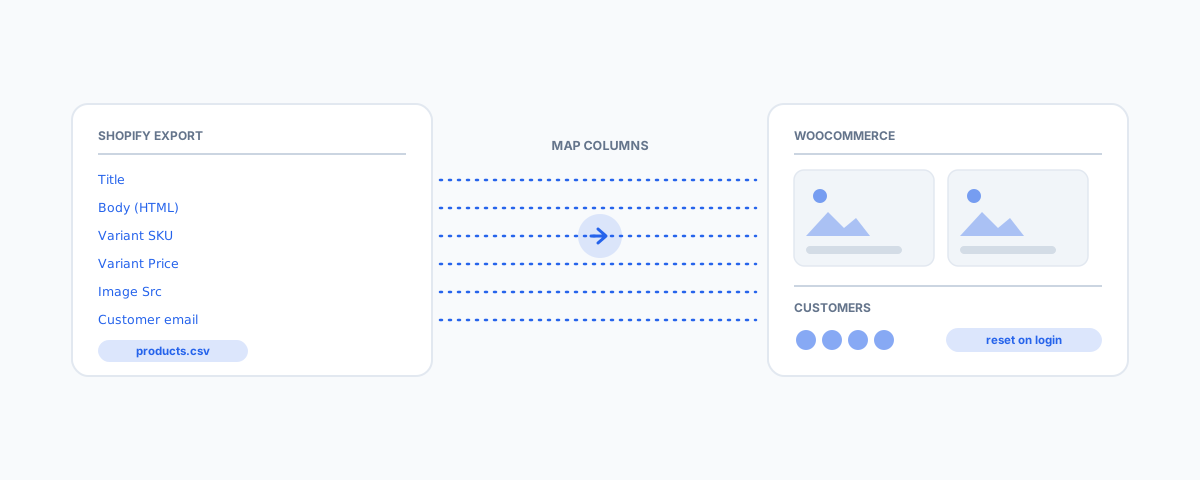
A practical guide to migrating a Shopify store to WooCommerce — importing products so the images come across, transferring customer data (and the password catch), and mapping the Shopify CSV to WooCommerce's product CSV format.
Moving a store from Shopify to WooCommerce is a well-worn path — usually driven by wanting to own the platform, escape per-sale fees, or bend the store to your own rules. It is entirely doable, but three questions come up every time, and each has a catch that trips people up if they do not plan for it: getting products in with their images intact, bringing customers across, and lining up Shopify's export with the format WooCommerce expects. Here is how each one works.
How to Import Shopify Products to WooCommerce (With Images)
Start by exporting your catalogue from Shopify — Products, then Export, which gives you a CSV of every product and variant. WooCommerce has a built-in Product CSV Importer (Products → Import) that reads a CSV and creates the products for you. The part people worry about is images, and the good news is that it mostly just works: Shopify's export includes an image column containing the public URL of each product image, and WooCommerce's importer can fetch images from those URLs and pull them into your media library automatically. The one condition is that the images must still be publicly reachable on Shopify's servers while the import runs — so do the import before you shut the Shopify store down, not after. For a big or complicated catalogue, or one with lots of variants, a dedicated migration plugin or service (Cart2Cart, LiteExtension, and similar) can automate the whole transfer and handle the fiddly variant structure for you. Either way, it is worth tidying the data before you bring it across rather than importing years of clutter — our guide to automating Shopify product data cleanup covers doing that.
How to Transfer Shopify Customer Data to WooCommerce
Customers export from Shopify the same way — Customers, then Export — producing a CSV of names, email addresses, shipping and billing addresses, and marketing consent. You bring that into WooCommerce as customer accounts using an import tool such as WebToffee's Import Export Suite, which maps the customer fields onto WooCommerce user accounts. There is one catch that surprises people, and it is unavoidable: passwords do not transfer. Shopify (like any responsible platform) stores passwords as one-way hashes it cannot hand back, so there is no way to move them. The standard, safe approach is to import the customers without passwords and have each person set a new one via a password reset the first time they log in. Two more things to get right: honour the marketing consent field so you are not emailing people who opted out, and decide whether you also need to bring across order history, which is a separate export and a more involved import if your customers rely on seeing past orders.
How to Map Shopify CSV to WooCommerce Product CSV
This is the step that makes or breaks the import, because the two platforms name and structure their columns differently — WooCommerce will not understand Shopify's headers as-is. At a high level, you are matching each Shopify column to its WooCommerce equivalent: the product title becomes the name, the description maps across, the variant price becomes the regular price, the SKU and inventory quantity map to WooCommerce's SKU and stock, and the image URL column feeds the product images. WooCommerce's importer has a column-mapping screen that does much of this automatically and lets you correct anything it guesses wrong, so you rarely have to rename columns by hand. The real subtlety is variants: Shopify lists each variant as its own row sharing a product handle, whereas WooCommerce models the same thing as a single variable product with child variations — so the rows for one product need to be grouped correctly on the way in. A good migration plugin handles that grouping for you; a manual CSV import needs care to get it right. If you are ever moving in the opposite direction, the same mapping logic applies — we cover that in migrating WooCommerce to Shopify without losing SEO.
Getting Help
None of this is out of reach, but a Shopify-to-WooCommerce migration rewards doing it in the right order — products with their images first, customers with a reset-password plan second, and a carefully mapped CSV underneath it all — and testing that everything landed before you switch off Shopify. If you would like it handled properly, our WordPress Integrations service migrates Shopify stores to WooCommerce end to end: catalogue and images, customers, and the CSV mapping, checked and reconciled so nothing is lost in the move. Get onto WooCommerce with everything intact, and you own your store outright from day one.