
2 July 2026
"9 Popular Power Automate Flows for Business (and What Each One Saves You)"
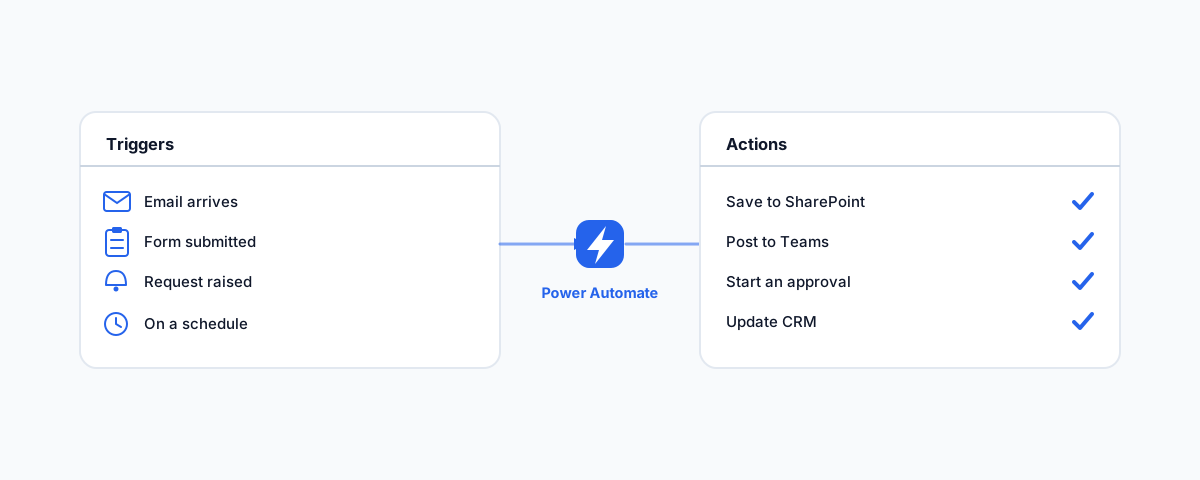
Nine popular Power Automate flows that pay off for small businesses on Microsoft 365 — approvals, saving email attachments, Forms to SharePoint, notifications, onboarding, document processing, reminders, lead routing, and file sync.
If your business runs on Microsoft 365, you already own one of the most useful automation tools around and are almost certainly not using it. Power Automate comes bundled with most Microsoft 365 plans, and it quietly does the repetitive, click-heavy work that eats your team's day — moving files, chasing approvals, filing emails, notifying the right people. The catch is that a blank automation builder is intimidating, so most businesses never start. Here are nine popular, genuinely useful flows to steal, and what each one actually saves you.
One quick note on licensing before the list: the everyday connectors most of these rely on — Outlook, Teams, SharePoint, OneDrive, Forms, and Approvals — are included with typical Microsoft 365 business plans. A few capabilities (AI Builder for reading documents, raw HTTP calls, and some third-party connectors) need a Power Automate premium licence. Where a flow below crosses that line, it is flagged.
1. Approvals: Leave, Expenses, Purchase Orders, and Sign-offs
Approvals are the number-one reason businesses adopt Power Automate, because they replace the worst workflow of all: chasing someone over email. A request — a leave application, an expense, a purchase order, a document sign-off — is submitted, and the flow routes it to the right person in Teams or email, sends reminders if they sit on it, records who approved what and when, and moves things along automatically. The payoff is faster decisions and a clean audit trail instead of a buried email thread. Microsoft has a straightforward guide to building an approval workflow if you want to see the mechanics.
2. Save Email Attachments to SharePoint or OneDrive
A classic for a reason: when an email arrives in a chosen mailbox, the flow automatically saves its attachments to a SharePoint or OneDrive folder, so invoices, signed forms, and supplier documents file themselves instead of living in someone's inbox. It sounds small, but for a business that receives documents by email all day, it removes a constant drip of manual filing — and it is the foundation of a tidy, searchable document store. We cover this and related email automations in more depth in our guide to Power Automate workflows for SharePoint and email.
3. Turn Microsoft Forms Responses into a Tracked List
If you collect anything through Microsoft Forms — enquiries, internal requests, event sign-ups, feedback — a flow can turn each submission into a row in a SharePoint list and notify the right person immediately. Instead of responses sitting in Forms where nobody looks, you get a live, shared, trackable list and an instant heads-up when something comes in. It is the difference between "we should check the form sometime" and a request that lands in front of the right person the moment it is made.
4. Notifications for the Things That Matter
Most people either drown in notifications or miss the important ones. Power Automate lets you be deliberate: post a message to a Teams channel or send an email exactly when something you care about happens — a file added to a key folder, a new item in a list, an external system firing a webhook, or an email arriving with a specific keyword in the subject. The result is that the events that need attention surface loudly, and everything else stays quiet. It turns "I didn't know that had come in" into a thing of the past.
5. New-Employee Onboarding
Onboarding a new starter follows almost the same sequence every time, which makes it perfect to automate. When HR adds someone to a "New hires" list, the flow can fire off a personalised welcome email, create their folders, raise the IT request to set up their accounts and access, and schedule their first-week check-ins — all without anyone remembering each step. It makes every new starter's first day consistent and organised, and it pairs neatly with the checklist approach in our onboarding and offboarding guide.
6. Invoice and Document Processing
This is where automation starts to feel like magic: when a PDF invoice or form arrives by email or lands in SharePoint, Power Automate's AI Builder can read it, extract the key fields — supplier, amount, date, invoice number — and drop them into a list or kick off an approval, with no manual data entry. For a business processing a steady stream of invoices, that is hours a week back. The one caveat: AI Builder is a premium capability, so this flow needs a premium licence rather than the standard connectors — worth knowing before you plan around it.
7. Scheduled Reminders and Recurring Reports
Some things should simply happen on a schedule, and a human is the least reliable way to make them. A scheduled flow can send reminders before deadlines, pull a weekly report together and email it out, prompt a monthly licence or access review, or nudge people about anything recurring. You set it once and it runs forever, quietly, which is exactly what you want for the routine tasks that are easy to forget and mildly costly when you do.
8. Route New Leads and Enquiries
A lead that slips through the cracks is money left on the table. When an enquiry arrives — through Outlook, a Form, or a website — a flow can capture it and drop it straight into your CRM, a Dataverse table, or a simple Excel or SharePoint list, so every enquiry is logged and nothing depends on someone remembering to copy it across. For a small business without a heavyweight sales system, this alone can be the difference between following up and forgetting.
9. Sync and Copy Files Across Locations
Finally, the quiet housekeeping flows. Power Automate can keep files in step across OneDrive and SharePoint, copy new files from one location to another automatically, or log incoming emails to a spreadsheet for a running record. (Syncing to non-Microsoft storage like Dropbox or Google Drive works too, but those are premium connectors.) None of these are glamorous, but together they remove the manual copying and cross-checking that quietly consumes time and invites mistakes.
Where to Start
The mistake is trying to automate everything at once. Pick the single repetitive task that annoys your team the most — usually it is approvals or filing something by hand — and build that one flow first. Start with the standard connectors you already have rights to, prove the value on one process, and only reach for premium features like AI Builder once you have a concrete need. One good flow that saves a few hours a week is worth more than ten half-finished ones. You can browse Microsoft's template gallery for ready-made starting points.
Getting Help
Power Automate is powerful, but the gap between "this could save us hours" and a flow that runs reliably, handles errors, and does not quietly break is where most businesses stall. If you would rather have the right flows scoped, built, and tested against your real processes — with the licensing worked out before you commit — our Workflow Automation service designs and builds automations on Power Automate (and beyond) that run dependably and fail visibly. Automate the repetitive work once, and your team gets to spend its time on the work that actually needs a human.