
13 July 2026
How to Convert a PDF Bank Statement to QBO and Import It into QuickBooks (2026)
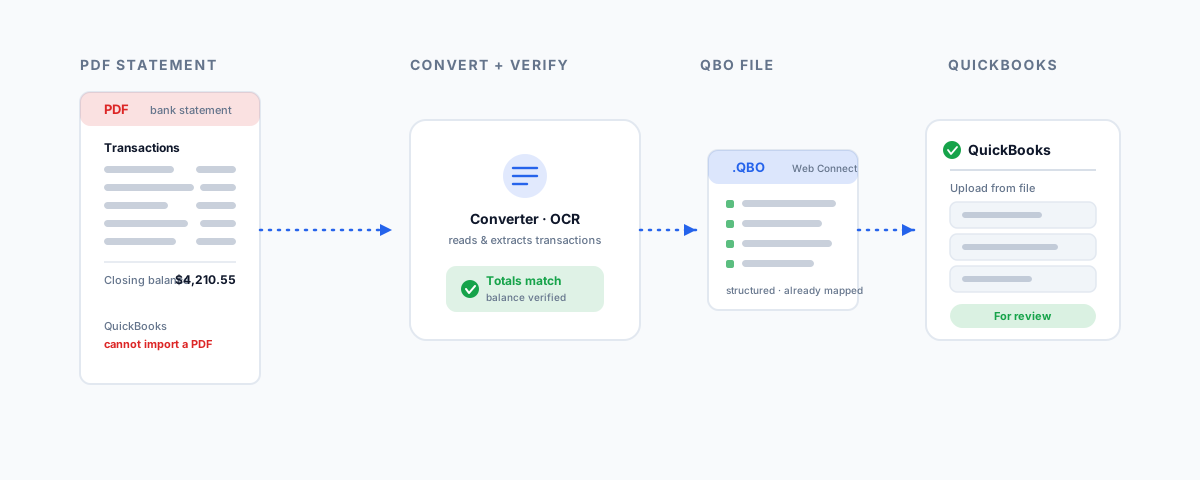
Your bank gives you PDF statements but QuickBooks will not import a PDF. Here is how to convert a PDF bank statement to a QBO, QFX, or CSV file, which converter to use, how to import it into QuickBooks Online or Desktop, and how to avoid duplicates and balance mismatches.
Your bank hands you statements as PDFs, and QuickBooks flatly refuses to import a PDF. That is the wall most people hit when they need to get transactions in from a bank with no feed, or to backfill older history a feed will not reach. The fix is to convert the PDF into a file format QuickBooks actually accepts — ideally a QBO file — and then upload that. It is a two-decision job: which format to convert to, and which tool to do the converting. Get both right and a stack of PDF statements becomes clean, categorised transactions in your books. Here is how.
Why You Cannot Just Upload the PDF
A PDF is a layout, not data. It looks like a table of transactions to you, but to QuickBooks it is a page of positioned text with no reliable structure saying "this is a date, this is an amount." QuickBooks needs the transactions as structured data, which is why it only imports specific formats: QBO (the QuickBooks Web Connect format), QFX, and CSV. Of these, QBO is the cleanest, because it carries the field structure with it — dates, descriptions, and amounts are already labelled, so there is nothing to map and far less to go wrong. Converting your PDF to QBO is therefore usually the most reliable path.
QBO vs CSV: Which to Convert To
You will generally choose between converting to QBO or to CSV, and the trade-off is simple. QBO is structured and self-describing: QuickBooks reads it with no column mapping, and good converters verify the file's totals against the statement before you import, so you catch extraction errors early. It is the smoother, more reliable option and worth preferring where your tool supports it. CSV is universal and often free, but it is raw — you have to get the columns and formatting exactly right, and QuickBooks will make you map them on import. CSV is the sensible fallback when you cannot produce a QBO, or your bank's layout converts more cleanly to a simple spreadsheet; QBO is the default when reliability matters, which for financial data it does.
The Conversion Tools
You need a converter that reads the PDF — with OCR if the statement is scanned rather than digital — extracts the transactions, and exports a QBO (or CSV) file. The main options:
| Tool | What it does | Pricing signal | Scanned PDFs |
|---|---|---|---|
| DocuClipper | PDF to QBO, QFX, or CSV with OCR; verifies totals against the statement balance | Around US$20/month | Supported |
| MoneyThumb | Converts PDFs and other formats to .qbo for QuickBooks Desktop or Online | ~US$29–99 one-time | PDF+ products add OCR; best on native PDFs |
| Lido | PDF to QBO/CSV with built-in OCR | Subscription | Handles scanned statements |
| ProperConvert / PDF2QBO | Desktop converters for PDF/CSV to QBO/QFX | One-time licence | Best with native digital PDFs |
A few notes. If your statements are digital PDFs downloaded from online banking, almost any of these will convert them accurately. If they are scanned images of paper statements, you need one with strong OCR — DocuClipper and Lido lead there — and you should check the output more carefully, because OCR can misread a smudged figure. For a one-off backfill, a one-time-purchase tool like MoneyThumb or ProperConvert can be cheaper than a subscription; for regular conversions, a subscription tool with balance verification earns its keep.
How to Convert
The process is much the same across tools: upload the PDF statement, let the tool read and extract the transactions, and — this step matters — verify the extracted total matches the statement's closing balance before you export. A good converter does this check for you and flags a mismatch, which is your signal that a figure was misread. Once the totals agree, export as a QBO file (or CSV if that is your path). You now have a file QuickBooks will accept.
Importing into QuickBooks
With the QBO or CSV file in hand, the import differs slightly by product.
QuickBooks Online:
- Go to Transactions → Bank transactions (or Banking).
- Select the account, then choose Upload from file.
- Select your converted QBO or CSV file.
- Choose the QuickBooks account the transactions belong to.
- If it is a CSV, map the columns so QuickBooks knows which is the date, description, and amount. A QBO file skips this — it is already structured.
- Review, then import. Transactions land in the For review list to be categorised and matched.
QuickBooks Desktop: use File → Utilities → Import → Web Connect Files and select the .qbo file, which brings the transactions into the matching account.
Getting the CSV Right
If you go the CSV route, most import failures come down to formatting, and QuickBooks Online is specific about what it wants:
- Three or four columns. Either Date, Description, Amount (one amount column, negatives for money out), or Date, Description, Credit, Debit (two columns).
- Size limits. The file must be 350 KB or smaller and no more than 1,000 transactions per upload — split a big history into multiple files.
- Dates in one consistent format. QuickBooks recommends dd/mm/yyyy, which suits Australian statements; the common failure is a mix of formats, or US MM/DD being misread.
- Clean numbers. No currency symbols, and leave a zero cell blank rather than entering 0. Remove the word "amount" from Credit/Debit headers.
If a CSV keeps erroring on you, converting to QBO instead usually sidesteps the whole problem, because the structure travels with the file. This is the same formatting discipline we cover in the broader guide to importing bank statements into QuickBooks, which also walks through bank feeds versus manual import.
Avoiding Duplicates and Verifying
Two final checks save a lot of cleanup. First, duplicates: if you also run a bank feed, importing a converted file that overlaps the feed's dates will bring transactions in twice — check the date range you already have and convert only the gap. Second, the balance: after importing, confirm the account's running balance matches the statement's closing balance. If it does not, the conversion dropped or misread a transaction, and it is far easier to find now than during a reconciliation three months later. Then categorise and reconcile as normal.
Getting Help
Converting and importing the odd statement is straightforward; doing it for years of history across several accounts, or wrestling with scanned PDFs and OCR errors that throw the balance out, is where it eats a weekend. If you would like your PDF statements converted, imported, and reconciled cleanly — with the duplicates and balance mismatches sorted — our Small Business IT Support service can handle it. And once your books are current, it is worth making sure they are backed up properly, since QuickBooks Online is less protected from data loss than most owners assume. If QuickBooks itself is misbehaving during all this, our guide to fixing a QuickBooks unrecoverable error may help.