
4 August 2026
How to Set Up QuickBooks Online for a Construction Business (Australia)
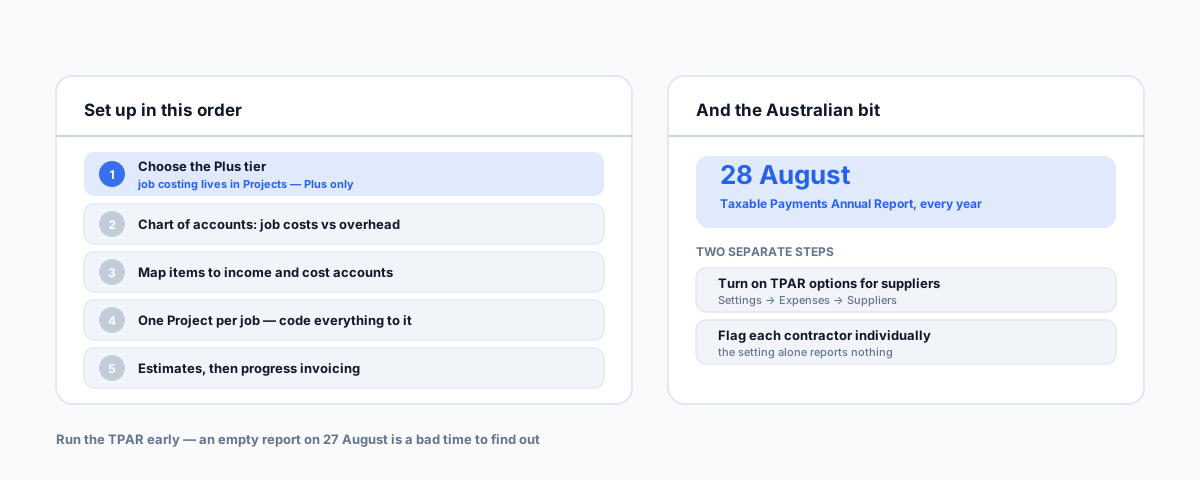
Most QuickBooks-for-construction guides are written for the US and organised around 1099s. The Australian setup turns on two decisions made in the first hour — which plan you're on, and whether your suppliers are flagged for TPAR before 28 August. Both are painful to retrofit.
Search for how to set up QuickBooks Online for construction and almost everything you'll find is written for the United States. It's organised around 1099 contractor reporting and AIA progress billing, neither of which exists here. The underlying accounting ideas transfer fine — job costing is job costing — but the compliance scaffolding is completely different, and the parts that will actually bite you in Australia go unmentioned.
Two decisions in the first hour determine whether the file is useful a year later. One is which plan you're on. The other is whether your subbies are set up correctly for TPAR. Both are far more painful to fix retrospectively than to get right at the start, and one of them has a hard deadline of 28 August every year.
Pick the Plan Before You Touch Anything Else
Job costing in QuickBooks Online lives in a feature called Projects, and Projects requires the Plus tier. Simple Start and Essentials don't have it.
That single fact should drive the decision, because per-job profitability is the main reason a construction business bothers setting up accounting software properly in the first place. A builder on Simple Start has a tidy set of books that cannot tell them whether the last job made money — which is the one question the software existed to answer.
Pricing moves constantly and Intuit runs near-permanent promotional rates, so check the current Australian pricing rather than trusting a number in any blog post, including this one. The durable fact is the tier requirement: no Plus, no job costing.
A Chart of Accounts That Separates Job Costs From Overhead
The default chart of accounts is built for a generic small business, and if you leave it alone every cost lands in one undifferentiated pile. For construction the essential split is direct job costs versus overhead.
Direct costs are the ones attributable to a specific job — materials, subcontractors, plant and equipment hire, site costs, disposal, permits. Overhead is everything that exists whether or not you're on site — rent, insurance, admin wages, software, vehicles.
Get this wrong and gross margin per job is meaningless, because subcontractor payments sitting in general expenses don't reduce the apparent profit on the job that incurred them. You end up with a P&L that looks fine and a business that isn't. Set the split up before you enter a single transaction; re-coding a year of bills later is grim work.
Products and Services Are What Make Job Costing Work
This is the step people skip because it feels like admin, and it's the one that determines whether any of your reports say anything.
Every product or service item needs to be mapped to both an income account and a cost account. Once that mapping exists, a line on a bill or an invoice automatically lands in the right place in your P&L and against the right job. Without it, Projects will faithfully report numbers that don't mean what you think they mean.
Projects Are Jobs
Set up each job as a Project, then assign everything to it: supplier bills, expenses, labour, and the invoices you raise against it. QuickBooks will then show income, costs and margin per job.
The failure mode here is almost never the setup — it's the discipline afterward. Job costing breaks because someone codes a load of timber to "Materials" without picking the job, and does it forty times over six months. Whatever process you use, the rule that matters is that nothing gets coded without a job attached. That's a habit problem more than a software problem, and it's worth being blunt with the team about it from day one.
Estimates and Progress Invoicing
Quote from an Estimate, then convert it progressively rather than invoicing the whole thing at completion. QuickBooks can raise invoices against portions of an estimate, which matches how construction work actually gets paid, and it keeps the original quoted figure visible next to what's been claimed so far — useful when a job has drifted and nobody's noticed.
Suppliers and TPAR: The Part the US Guides Don't Have
If you're primarily in building and construction and you pay contractors or subcontractors, you must lodge a Taxable Payments Annual Report with the ATO. This is the Australian obligation with no US equivalent, and it's the one that catches people out.
The ATO's test for "primarily" is specific. Per its building and construction services guidance, you're captured if any one of these applies: 50% or more of your business income this financial year comes from building and construction services; 50% or more of your business activity this financial year relates to those services; or 50% or more of your income in the immediately preceding financial year came from them. Note it's an or — plenty of businesses that don't think of themselves as builders are inside this.
The TPAR is due 28 August each year. Payments to employees are not reported — only payments to contractors and subcontractors.
In QuickBooks Online, setting this up is two separate steps, and conflating them is the usual reason a report comes out empty:
- Enable the feature. Gear icon, then Account and Settings, then Expenses, then Suppliers, and turn on Show TPAR options for suppliers. Save.
- Flag each contractor individually. The setting above only makes the option visible. Every relevant supplier still has to be marked one by one.
Then run the Taxable Payments Annual Report from your reports list, set the date range, download the file in .efile format, and lodge it through the ATO portal.
The practical advice: run the report now, not on 27 August. The common unpleasant surprise is a supplier who's been ticked but doesn't appear, and you want to find that with weeks in hand rather than the night before. Running it early costs nothing and the report is the only way to see what the ATO will actually receive.
Retentions Are Where QuickBooks Gets Awkward
Worth setting expectations honestly: QuickBooks Online has no native retention handling. The standard approach is to create a dedicated retainage account and a matching item, then add that item as a line on the invoice so the retained portion is separated from what's currently payable, and release it later when the contract says so. QuickBooks won't calculate the percentage for you — that's a manual figure every time.
The detail that varies, and the reason this post won't prescribe a method: the correct account type and the revenue-recognition treatment depend on your contracts and how you recognise income. Done carelessly it produces exactly the mess you were trying to avoid — an A/R ageing report claiming you've collected money you haven't, or a P&L overstating revenue. This one is worth twenty minutes with an accountant who does construction work, set up once, at the start.
Where QuickBooks Stops
QuickBooks Online is an accounting system. It is not a job management system, and past a certain size trying to make it one is how businesses end up entering everything twice.
Scheduling, on-site job notes, timesheets from the field, variations, and quoting workflows all belong in a job management tool that feeds the accounting file rather than in the accounting file itself. Our comparison of what trades software gives you on site covers that layer, and if you're a sole trader weighing the cost, the affordable alternatives to ServiceM8 piece is a better starting point than adding modules to your accounting software.
One more thing worth doing once and forgetting about: automate a backup of the QuickBooks file. Cloud accounting is not the same as having a copy of your data.
Getting Help
The setup itself is a day's work. The part that reliably goes wrong is the join — job management software on one side, the accounting file on the other, and coding discipline in between that determines whether any of the reporting is true. Our Workflow Automation service covers exactly that: getting jobs, costs and invoices flowing between systems so per-job margin is something you can actually read rather than something you reconstruct at tax time.