
20 July 2026
Xero Automated Backup: Why the Built-In Trash Isn't Enough
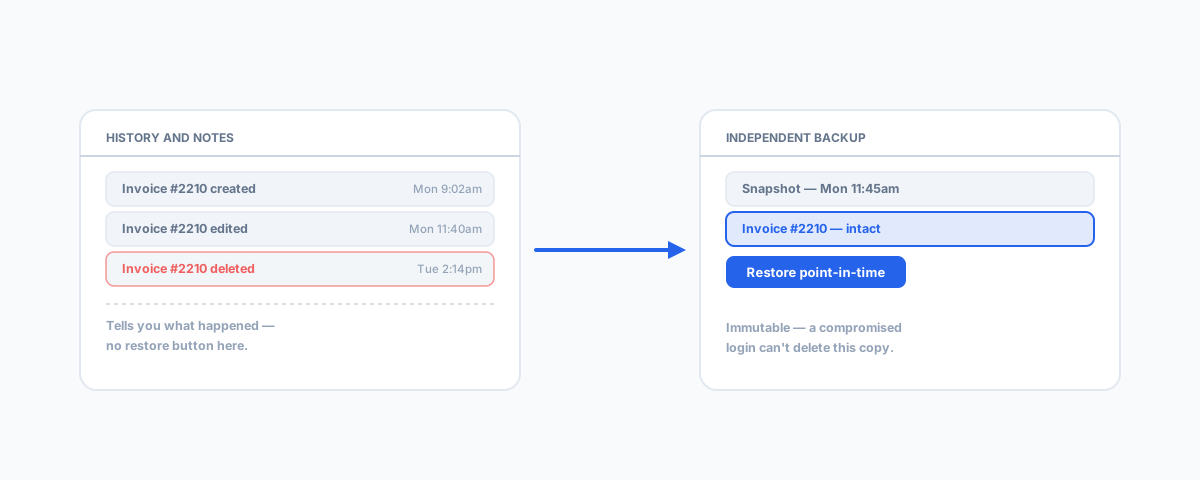
Xero's History and Notes audit trail logs every deletion — it doesn't undo one. What Xero actually gives you when something disappears, why most deleted transactions have no self-service recovery at all, and how a dedicated backup tool closes the gap for a single Xero organisation or a bookkeeping practice running dozens.
Ask most Xero users what happens if a bookkeeper deletes the wrong batch of invoices, and the answer is usually a shrug — "Xero keeps a history of everything, so we can just look it up." That is true, and it is also the source of the confusion, because looking something up and getting it back are not the same feature. Xero's audit trail is genuinely excellent at telling you what happened. It was never built to undo it. This is the Xero-specific detail behind the broader point we made in our comparison of accounting software backup across Xero, QuickBooks, and MYOB — here is exactly where that gap sits inside Xero, and what closes it.
What History and Notes Actually Does
Xero's History and Notes feature is a tamper-proof audit log: it records every creation, edit, and deletion against a transaction, including who made the change, when, and — for edits — the old and new values side by side. Critically, this log cannot be altered or removed by any user, including an administrator, which is exactly what makes it trustworthy for reconstructing what happened during a dispute or a review. That is also its entire job. History and Notes tells you a transaction existed and was deleted on Tuesday at 2:14pm by a specific login. It does not put the transaction back.
The Recovery Gap Most Users Don't Know About
Here is the part that surprises people: for most deleted transactions, Xero has no self-service undo at all. There is no recycle bin you can open and restore from, the way you might in Google Drive or Dropbox. If a bank reconciliation, a batch of invoices, or a set of bills is deleted, your options are to manually re-enter the data from source documents, or contact Xero Support and ask whether they can retrieve it — which is a case-by-case, best-effort process, not a guaranteed restore, and it depends on Xero's own backend retention, not anything you control or can rely on for a specific recovery window. Some object types behave slightly better — contacts, for instance, can often be archived and reinstated — but the transactional core of your ledger, where the real damage happens, largely does not have a working "undo" button. If your mental model of Xero includes a safety net that catches accidental deletions, it is worth updating that model now, before you need it.
What Actually Goes Wrong
The failure modes are mundane, which is exactly why they are common. A bulk reconciliation match applied to the wrong statement period, touching hundreds of transactions before anyone notices. A CSV import that duplicates or overwrites existing records. A compromised login — phished credentials or a reused password — used to delete or alter records with entirely legitimate-looking access. A bookkeeper or staff member offboarded without a review of what they changed on the way out. Any one of these leaves you relying on History and Notes to tell you what was lost, with no built-in way to get it back.
How a Dedicated Backup Tool Actually Works
A tool like SysCloud — built specifically for Xero rather than a generic file backup — connects through Xero's own API using OAuth, the same authorisation model any legitimate Xero add-on uses, so there is no separate agent to install and no direct database access outside Xero's own permission system. Once connected, it pulls a full copy of your organisation's data on a schedule — invoices, bills, contacts, bank transactions, and attachments — independently of Xero's own infrastructure, and stores it immutably, meaning nothing with access to your live Xero account, including a compromised login, can also reach back and delete the backup. Restore is granular: a single transaction, a date range, or the full organisation, to a specific point in time rather than only "the most recent snapshot." That combination — independent storage, immutability, and point-in-time restore — is precisely what History and Notes was never designed to provide.
If You Run a Bookkeeping Practice, Not Just One Organisation
The stakes multiply for a practice managing multiple client files through Xero HQ or Xero Practice Manager. One staff member's bad import or a single compromised login can touch several client organisations in the time it takes to notice, and "explain to the client that their books are unrecoverable" is a conversation no practice wants to have. Backup tools built for Xero typically support connecting across a full client list rather than one organisation at a time, which turns this from a per-client manual task into a single dashboard — worth setting up once across every client file rather than reactively after the first incident.
Setting It Up Properly
Connect a Xero-specific backup tool via OAuth — there is no software to install locally, since both ends of the connection are already cloud-based. Confirm the retention window comfortably clears the ATO's five-year record-keeping requirement, since that is the real compliance floor this exists to protect, not just convenience. Then do the step almost everyone skips until the day they actually need it: restore a single transaction or a narrow date range as a test, so you know the process works before it's the only thing standing between you and a client's missing quarter.
Getting Help
Xero's audit trail is one of the better ones in accounting software — it just answers a different question than "can we get this back." If you'd rather have Xero's backup connected, immutable, and restore-tested — for a single organisation or across a full practice client list — our Small Business IT Support service sets this up properly once. For the QuickBooks equivalent of this same gap, see our guide to backing up QuickBooks Online automatically, and for the wider backup principles that apply across every cloud tool you run, our guide to small business data protection.